How to Add an App to Samsung Smart TV: The Complete Step-by-Step Guide
Samsung Smart TVs run on the powerful Tizen OS platform, and knowing how to add an app to Samsung Smart TV unlocks a world of streaming, gaming, and entertainment right from your couch. Whether you want Netflix, Disney+, YouTube, Spotify, or any other streaming app, the process is quick once you know the exact steps. This guide breaks everything down clearly — from the initial setup requirements to managing, organizing, and troubleshooting your downloaded apps.
What You Need Before Getting Started
Before you learn how to add an app to Samsung Smart TV, make sure these essentials are in place:
- A stable Wi-Fi or wired internet connection — streaming apps require an active network connection both during download and while in use.
- A Samsung account — as of recent firmware updates, a Samsung account is required to access the Smart Hub and download any apps. You can create one for free from a phone, tablet, or computer.
- Sufficient storage space — Samsung Smart TVs have limited internal storage. If your TV is running low, you may need to uninstall some existing apps first.
- Updated firmware — running the latest software version ensures app compatibility and access to the most current app store listings.
Once these are confirmed, you are fully ready to proceed.
How to Add an App to Samsung Smart TV Using the Smart Hub
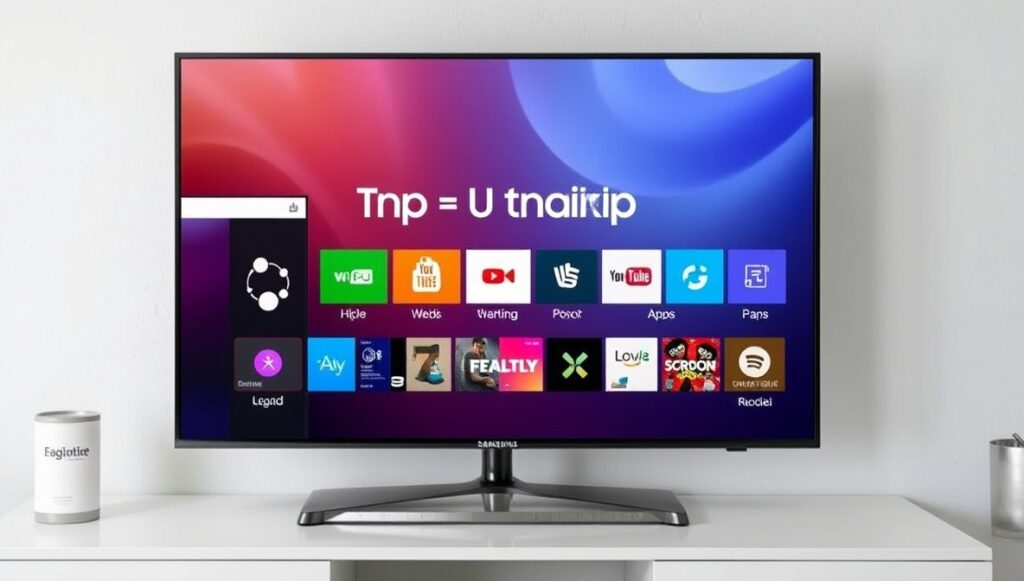
The Smart Hub is the central interface of every Samsung Smart TV, and it is the primary place where you discover, download, and manage all your apps.
Step 1: Press the Home Button Pick up your Samsung remote and press the Home button. This opens the Smart Hub home screen, which displays your main menu bar along the bottom.
Step 2: Navigate to Apps Using the directional pad on your remote, scroll to and select the Apps section. This takes you to the full Samsung app store where both featured and searchable apps are displayed.
Step 3: Open the Search Tool In the top-right corner of the Apps screen, you will see a magnifying glass icon. Select it to open the search bar. This is the fastest way to find a specific app by name.
Step 4: Type the App Name Use the on-screen keyboard to enter the name of the app you want to install — for example, “Disney+” or “Spotify.” Select the correct result from the list that appears.
Step 5: Select Install On the app’s detail page, select the Install button. The download will begin immediately. Larger apps may take a minute or two depending on your internet speed.
Step 6: Open or Add to Home Once installation is complete, you can select Open to launch the app right away, or select Add to Home to pin it to your Smart Hub home screen for easy access later.
That is the complete standard method for how to add an app to Samsung Smart TV on any modern model running Tizen OS.
How to Add an App to Samsung Smart TV Home Screen
Installing an app and pinning it to your home screen are two separate actions. Here is how to do both:
Adding a New App to the Home Screen During Installation
When the install finishes, you will see an “Add to Home” option before you select “Open.” Always click this if you plan to use the app regularly — it saves time later.
Pinning an Already Installed App to the Home Screen
- From the Home screen, navigate to Apps.
- Scroll down and select App Settings.
- Find the app you want to pin.
- Highlight it and select Add to Home.
- The app shortcut will now appear in the Apps row on your home screen. connected without internet fix
You can reposition any app shortcut at any time by highlighting it, pressing and holding the Enter/Select button, then using the directional pad to move it to a new position.
How to Rearrange and Organize Apps
Once you learn how to add an app to Samsung Smart TV, keeping things organized improves your viewing experience significantly.
- Highlight the app you want to move on the home screen.
- Press and hold the Enter button until a selection box appears around the app.
- Use the arrow keys to drag it to a new position.
- Press Enter again to confirm its placement.
Placing your most-used streaming services — such as Netflix, Hulu, or Prime Video — at the beginning of the row means fewer clicks every time you sit down to watch.
Browsing the Samsung App Store by Category
If you are not looking for a specific app and want to discover new content, you can browse the Samsung Apps store by category instead of searching. After opening the Apps section from the Smart Hub, you will see curated sections such as:
- What’s New — recently added apps
- Most Popular — top-downloaded titles
- Video — streaming services and on-demand platforms
- Music — audio streaming apps like Spotify and Pandora
- Games — casual and interactive TV games
- Sports — live sports and fitness apps
- Lifestyle — news, weather, cooking, and more
Browsing by category is a great way to find apps you did not know were available on your Samsung Smart TV.
Using Bixby Voice Commands to Install Apps
On compatible Samsung Smart TV models with Bixby integration, you can use voice commands to find and install apps hands-free. This is a convenient option when you do not want to type on the on-screen keyboard.
- Press and hold the Microphone or Bixby button on your remote.
- Say something like, “Install [app name]” or “Open the App Store.”
- Bixby will locate and pull up the app for you.
- Confirm the installation on screen.
Note that Bixby availability depends on your TV model and region. Check your remote for a dedicated Bixby button to confirm support.
How to Enable Auto Update for Installed Apps
Keeping your apps up to date ensures you always have access to the latest features, security patches, and compatibility improvements. Here is how to enable automatic updates:
- Press Home to open the Smart Hub.
- Navigate to Apps, then scroll down to App Settings.
- Select Auto Update and toggle it to ON (the toggle will turn blue when active).
With Auto Update enabled, your Samsung Smart TV will quietly keep all installed apps current in the background without requiring manual intervention.
How to Lock Apps on Samsung Smart TV
If you share your TV with children and want to restrict access to certain apps, the lock feature adds a PIN requirement before any locked app can be opened.
- Press Home and navigate to Apps.
- Scroll to App Settings.
- Select the app you want to restrict.
- Choose Lock. You will be prompted to enter your PIN (the default PIN is 0000).
To unlock an app later, follow the same steps and select Unlock instead. This feature is useful for keeping mature-rated content inaccessible to younger viewers.
How to Delete or Uninstall Apps
Removing unused apps frees up storage and helps keep your home screen tidy.
- Go to Apps from the Smart Hub home screen.
- Select App Settings.
- Highlight the app you want to remove.
- Select Delete or Uninstall.
Keep in mind that pre-installed Samsung apps — sometimes called recommended apps — cannot be deleted. However, they can be removed from the home screen so they no longer appear in your app row.
App Compatibility: What to Do If an App Is Not Available
Not every app is available on every Samsung Smart TV model. App compatibility depends on your TV’s hardware capabilities and Tizen OS version. If you cannot find an app in the app store, it likely means the app is not supported on your specific model.
| Reason | What It Means |
|---|---|
| App not listed in store | Not compatible with your TV model or region |
| App crashes after install | Your TV’s hardware may not meet requirements |
| Install button is greyed out | Firmware may need updating first |
| App disappears after install | Insufficient internal storage |
If an app you need is unavailable, there are a few workarounds to consider.
Alternatives When an App Is Not Available on Your TV
Samsung Smart TVs run on Tizen OS, which means they are not compatible with standard Android APK files. You cannot simply download an APK and install it the way you might on an Android phone. Instead, consider these alternatives:
Screen Mirroring Use your smartphone or tablet’s built-in screen mirroring feature (such as Samsung DeX or Google Cast) to display content from any app directly on your TV screen over Wi-Fi.
External Streaming Devices Devices like the Amazon Fire TV Stick, Roku, Google Chromecast, or Apple TV connect via HDMI and bring their own app stores — typically with far broader app selections than the built-in Tizen store. This is the most reliable workaround for accessing apps that are unavailable on older Samsung Smart TV models.
Firmware Update Before giving up on finding an app natively, always check for a software update. Go to Settings → Support → Software Update → Update Now. An updated Tizen OS version sometimes unlocks previously unavailable apps.
Tips for a Better App Experience on Samsung Smart TV
- Restart your TV and router if an app fails to install or crashes on launch — this resolves the majority of minor glitches.
- Check your internet speed — apps that stream 4K content require a minimum of 25 Mbps for smooth playback.
- Reset Smart Hub if multiple apps are misbehaving: go to Settings → Support → Device Care → Self Diagnosis → Reset Smart Hub.
- Sign out and back in to your Samsung account if downloads are failing unexpectedly.
- Check available storage regularly if you have many apps installed — a full storage drive will prevent new downloads.
FAQs
Do I need a Samsung account to download apps on my Samsung Smart TV?
Yes. A Samsung account is now required to access the Smart Hub and download any apps. You can create one for free using a smartphone, tablet, or computer, then sign in directly on your TV.
Why can’t I find a specific app in the Samsung app store?
If an app does not appear in the search results, it most likely is not compatible with your TV model or is unavailable in your region. App availability depends on your TV’s hardware and the Tizen OS version it runs.
Can I install Android APK files on a Samsung Smart TV?
No. Samsung Smart TVs run Tizen OS, which is not compatible with Android APK files. If you need an app that is not in the Samsung store, the best option is to use an external streaming device connected via HDMI.
How do I move an app to the front of my home screen?
Highlight the app on your home screen, press and hold the Enter/Select button until a move icon appears, then use the directional pad to drag it to your preferred position and press Enter to confirm.
What should I do if an app keeps crashing on my Samsung Smart TV?
First, restart the TV. If the problem persists, uninstall and reinstall the app. Also check for a firmware update under Settings → Support → Software Update. For stubborn issues, resetting the Smart Hub often resolves persistent crashing problems.
How do I update apps manually on Samsung Smart TV?
Go to Apps from the Smart Hub, then select App Settings. Highlight any app and choose Update if a newer version is available. To skip manual updates entirely, enable Auto Update in the same App Settings menu.
Can I add apps to Samsung Smart TV without the remote?
Yes. If you have a compatible smartphone, the Samsung SmartThings app lets you control your TV and navigate menus, including the app store, directly from your phone as a virtual remote.